📝 RMS simulations
Root-mean-square (RMS) simulation is VeraGrid’s phasor-domain dynamic-simulation workflow for electromechanical and controller time scales. It is the right tool when the objective is to study the time evolution of the system after a disturbance without resolving instantaneous electromagnetic waveforms inside each cycle.
RMS simulation is usually the first dynamic study to run because it captures the global dynamic picture at moderate computational cost.
When to use RMS simulation
Use RMS simulation when the study objective is mainly related to:
transient stability,
rotor-angle stability,
frequency evolution after an imbalance,
AVR, governor, and PSS response,
converter outer-loop response,
dynamic performance after set-point changes, faults, or switching events,
system-wide studies where computational efficiency matters.
If waveform-level, phase-domain, or switching-level detail is required, move to EMT simulations.
RMS workflow in VeraGrid
In VeraGrid, an RMS simulation is built from:
a static network model,
a solved power flow used as operating-point reference,
RMS dynamic models assigned to the relevant devices,
optional RMS events,
one initialization workflow and one integration method.
The practical RMS workflow is:
Build or import the grid model.
Run a power flow.
Assign RMS models to the devices that need dynamic behaviour.
Configure RMS events if the study includes disturbances or parameter changes.
Select RMS options such as total simulation time, time step, tolerance, and integration method.
Run the simulation and inspect the time trajectories.
RMS settings
The RMS workflow is driven through RmsOptions and RmsSimulationDriver.
The main settings exposed through RmsOptions are:
integration_method: numerical integration method. The standard workflow usesDynamicIntegrationMethod.DaeBackEuler.initialization_method: initialization workflow, typicallyRmsInitializationMethod.Explicit.problem_type: internal RMS formulation.time_step: interval between numerical integration steps.simulation_time: final simulation time.tolerance: numerical tolerance used by the simulation workflow.use_init_values: whether stored initialization values should be reused when available.max_iter: maximum number of nonlinear iterations inside the solver.
As a practical rule, RMS time steps are usually in the millisecond range.
RMS events
RMS events are used to alter the model during the simulation. Typical examples are:
load steps,
active- or reactive-power ramps,
controller-reference changes,
switching actions,
study-specific parameter changes.
In VeraGrid, events are organized through:
RmsEventsGroup: one simulation scenario,RmsEvent: one runtime parameter change inside that scenario.
This allows multiple dynamic scenarios to be run on top of the same base grid.
GUI example
The following compact example is adapted from RMS_practical_session.md, omitting the generic platform introduction.
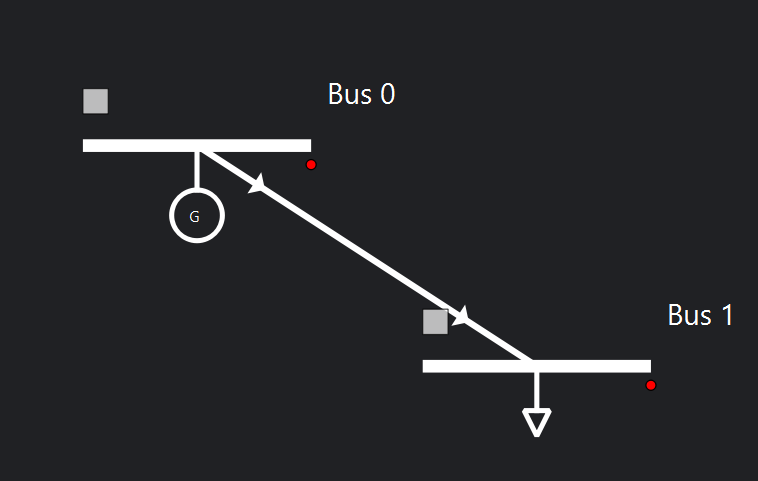
Example objective
Build a 2-bus RMS model with:
one slack generator,
one load,
one line,
one RMS event group with a step and a ramp applied to the load.
System sketch:
Static network data
Object |
Parameter |
Value |
|---|---|---|
Grid |
|
100 MVA |
Grid |
|
50 Hz |
Bus 0 |
|
|
Bus 0 |
|
10 kV |
Bus 1 |
|
|
Bus 1 |
|
10 kV |
Line 1 |
|
0.029585 p.u. |
Line 1 |
|
0.071005 p.u. |
Line 1 |
|
0.03 p.u. |
Line 1 |
|
900 MVA |
Load 1 |
|
9.999999 MVA |
Load 1 |
|
0.999999 MVA |
Generator 1 |
|
1.0 p.u. |
Generator 1 |
|
900 MVA |
Generator 1 |
|
50 Hz |
Generator 1 |
|
0.3 |
Generator 1 |
|
0.86 |
RMS simulation settings
Parameter |
Value |
|---|---|
Integration |
|
Initialization |
Explicit |
Tolerance |
|
Simulation time |
1 s |
Time step |
|
RMS dynamic-model assignment
For this example:
the generator uses a complete generator RMS template,
the line uses a line RMS template,
the load uses a load RMS template.
In the GUI there are two ways to assign these models:
Assign an
rms_templatefrom the device properties or from the default catalogue.Open the RMS editor and build the model graphically from blocks.
The second workflow is the most flexible when parameters, equations, or control structure must be edited.
When opening the RMS editor, the grid connection blocks are already present. The user then adds the dynamic blocks from the library and connects them to those terminals.
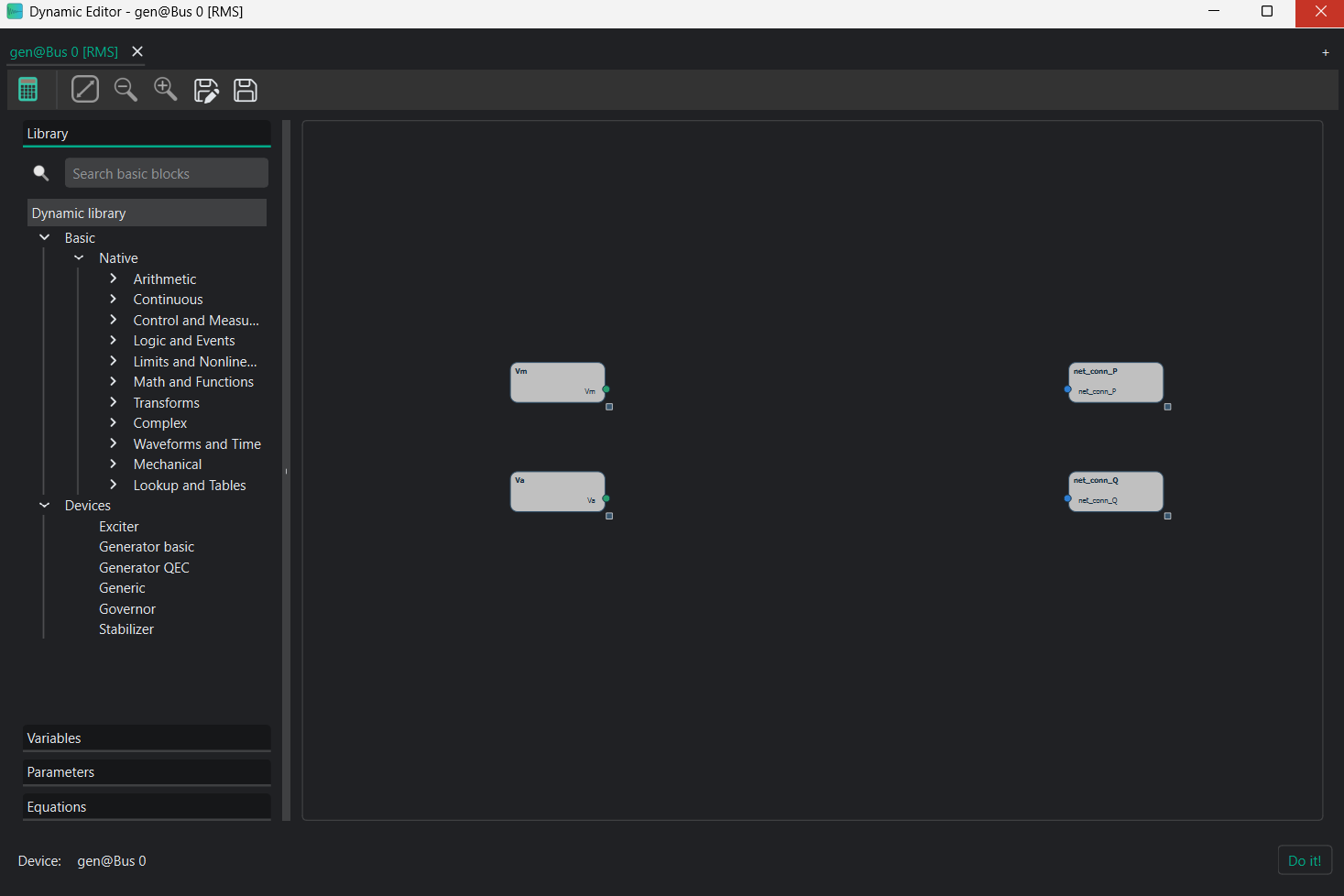
Example final generator model:

RMS event example
The practical-session event set is:
Event |
Device |
Time interval |
Parameter |
New value |
Transition |
|---|---|---|---|---|---|
Decrease load |
Load |
0.1 s |
|
-0.06 |
Step |
Increase load |
Load |
0.2-0.3 s |
|
-0.1 |
Ramp |
From the GUI, event scenarios are created by adding an RmsEventsGroup and then attaching RmsEvent objects to the selected device.
RMS results
The RMS dynamic results are stored in RmsResults.
Registered Result Properties
Property |
Type |
Description |
|---|---|---|
|
|
Ordered simulation time samples. |
|
|
Simulated RMS variable values. |
|
|
Ordered declared RMS event-group names. |
|
|
Ordered declared RMS event-group identifiers. |
|
|
Mask indicating which declared event groups actually produced simulation data. |
|
|
Initialization status per event group. |
|
|
Convergence status per event group. |
|
|
Serialized metadata used to reconstruct variable and device bindings. |
In practice, users normally inspect:
results.time_array,results.values,results.converged,results.well_initialized.
API
The RMS scripting workflow is:
Build or load the grid.
Initialize RMS bus shells where required.
Assign RMS templates to the dynamic devices.
Run a power flow.
Configure
RmsOptions.Run
RmsSimulationDriver.Read
RmsResults.
from VeraGridEngine.Devices.Substation.bus import Bus
from VeraGridEngine.Devices.Injections.generator import Generator
from VeraGridEngine.Devices.Injections.load import Load

from VeraGridEngine.enumerations import DynamicIntegrationMethod, RmsInitializationMethod
from VeraGridEngine.Templates.Rms.genqec_exc_gov_sat_template_v2 import get_complete_generator_template_rms
from VeraGridEngine.Templates.Rms.line_rms_template import get_line_rms_template
from VeraGridEngine.Templates.Rms.load_rms_template import get_load_rms_template
from VeraGridEngine.Utils.Symbolic.bus_rms_template import initialize_bus_rms
from VeraGridEngine.Utils.Symbolic.templates_common_functions import set_rms_model

from VeraGridEngine.Simulations.PowerFlow.power_flow_driver import PowerFlowOptions
from VeraGridEngine.Simulations.Rms.rms_options import RmsOptions
from VeraGridEngine.Simulations.Rms.rms_driver import RmsSimulationDriver

import VeraGridEngine.api as vg

grid = vg.MultiCircuit(Sbase=100.0, fbase=50.0)

bus0 = Bus(name="Bus0", Vnom=10.0, is_slack=True)
bus1 = Bus(name="Bus1", Vnom=10.0)
grid.add_bus(bus0)
grid.add_bus(bus1)

for bus in grid.buses:
    initialize_bus_rms(bus, vf=grid.var_factory)

line = vg.Line(name="line 0-1", bus_from=bus0, bus_to=bus1, r=0.029585, x=0.071005, b=0.03, rate=900.0)
grid.add_line(line)

load = Load(name="Load1", P=9.999999, Q=0.999999)
grid.add_load(bus=bus1, api_obj=load)

gen = Generator(name="Gen0", P=10.0, vset=1.0, Snom=900.0, x1=0.86138701, r1=0.3, freq=50.0)
grid.add_generator(bus=bus0, api_obj=gen)

gen_rms = get_complete_generator_template_rms(grid.var_factory).block
line_rms = get_line_rms_template(grid.var_factory).block
load_rms = get_load_rms_template(grid.var_factory).block

set_rms_model(device=gen, model=gen_rms, var_factory=grid.var_factory)
set_rms_model(device=line, model=line_rms, var_factory=grid.var_factory)
set_rms_model(device=load, model=load_rms, var_factory=grid.var_factory)

load.rms_model.set_parameter_in_model(var_name="Pl0", new_value=-0.10)

pf_options = PowerFlowOptions(solver_type=vg.SolverType.NR, verbose=0)
pf_results = vg.power_flow(grid, options=pf_options)

rms_options = RmsOptions(
    time_step=0.001,
    simulation_time=1.0,
    tolerance=1e-6,
    integration_method=DynamicIntegrationMethod.DaeBackEuler,
    initialization_method=RmsInitializationMethod.Explicit,
    use_init_values=False,
    max_iter=1000,
    verbose=0,
)

driver = RmsSimulationDriver(grid=grid, options=rms_options, pf_results=pf_results)
driver.run()

results = driver.results
print(results.converged)
print(results.well_initialized)
print(results.values.shape)
Practical notes
Always validate the static power-flow solution before running RMS.
Use RMS first when the main interest is electromechanical or controller-level behaviour.
Keep the dynamic model only as detailed as the study requires.
For linearized modal analysis around one RMS operating point or one RMS trajectory point, see Small signal stability.
For the broad mathematical and architectural background of the dynamic engine, see Dynamic simulations.